
 Since I’m currently running Windows 7 Beta on my computer, I’ve ran into this issue quite a few times. You download some program you’ve been using on Windows Vista before, and once you try to install it, you’re being told “The operating system is not supported. Installation will be aborted.”
For many 3rd party installer systems, using Microsoft’s compatibility wizard will solve the problem. Just tell the wizard that the program requires special permission and ran on older OS version (e.g. Vista) and it should install fine. Unfortunately, this usually doesn’t work for Microsoft Installer packages (*.msi files). Here’s a short tutorial on how to still force those packages to install (taking the Samsung LightScribe software as an example):
- Hit Windows+R to open the “Run” command prompt and enter %TEMP% to open your temp folder. Select all files and hit Delete. Confirm and just ignore all files you can’t delete.
- Run LS_Update_1.14.32.1_.exe, which will extract the installer contents to some folder in your temp folder and start the installation. At some point the installation stops and you’re told that your OS is not supported. DON’T hit OK now, leave the message open!
- Go to your temp folder and look for some cryptic folder like {C1EFD9F9-2726-4203-A83F-848D81B32CD9}. This folders contains the extracted content from the above installer (including the actual MSI package). COPY THE WHOLE FOLDER TO SOME PLACE SAFE (e.g. your Desktop), as the temp folder will be emptied once you exit the setup procedure. After copying that folder, you can now confirm the “OS not supported” message. The installer will exit and the temp folder be emptied.
 Go to your copy of the former temp folder (e.g. on your Desktop) and locate the MSI package in it (e.g. LS_HSI.msi). Right-click it and select Edit with Orca (Orca is a Microsoft tool to edit MSI packages and is included in the Windows SDK which can be downloaded here).
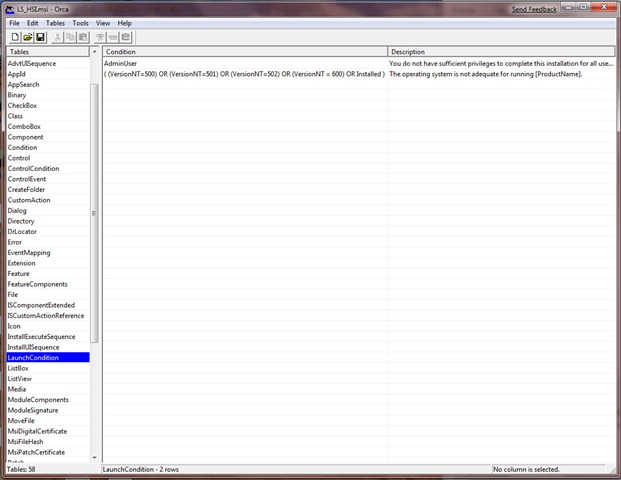
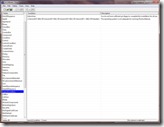 Now, while there is now absolute standard way how MSI packages check the operating system version, this check usually is part of the launch conditions. Therefore, in Orca, select LaunchCondition under Tables and look for something suspicious like ( (VersionNT=500) OR (VersionNT=501) OR (VersionNT=502) OR (VersionNT = 600) OR Installed ).
- Delete or modify the above condition to meet you needs and hit Save.
- Close Orca and run the MSI package by double-clicking it. The program should install fine now.
This is not a universal tutorial for all MSI packages out there. It requires some thinking of yourself once you opened the MSI file in Orca, as the OS checks don’t always look the same, but the trick works for quite a lot of Microsoft Installer packages out there.
Thanks for the post.
My temp folder has a .exe file instead of a msi or the like. The 3rd party installer creates an install log with the following: Action 12:55:33: LaunchConditions. Evaluating launch conditions
Action start 12:55:33: LaunchConditions.
Affymetrix GeneChip Command Console requires that your computer is running Windows XP with SP2, Windows 2003 Server with SP2, or Windows Vista.
MSI (c) (90:0C) [13:02:12:048]: Product: Affymetrix GeneChip Command Console — Affymetrix GeneChip Command Console requires that your computer is running Windows XP with SP2, Windows 2003 Server with SP2, or Windows Vista.
Action ended 13:02:12: LaunchConditions. Return value 3.
InstallShield 13:02:12: Failed to launch action ‘LaunchConditions’, error is 1603
Any advise?
Thanks,
-Tom
I used this directions to install M-Audio Midiman Delta Audiophile to Server 2008 R2.
Though i also had to start original installer again, cancel it..
(original .msi packet was left to temp folder after cancelling -not deleted automatically as described here)
..and copy edited msi packet into same location in temp folder after deleted original one.
Then i could successfully install M-Audio drivers to my server.
This should be made possible by M-Audio because 1. though most people dont use m-audio products on servers they should not prevent it. M-Audio should not decide it behalf of customers.
2. Srv2008R2 has same core as Win7
3. Hyper-V users have to get hardware working in server first before delegating those to guest machines.. so i actually am trying to use this driver with Win7 -not in the server- it just runs over Hyper-V!
Worked a charm for installing Paragon Professional 10 on Windows Server.
Thanks.
YOU ROCK! THX.
M-Audio Firewire 410 working on Window Server 2008
Original Driver : FireWire_6_0_1_5_10_0_5058.exe
Found another article with a direct link to an ORCA install instead of installing full SDK.
Article:
http://www.hack7mc.com/2009/01/fixing-msi-windows-version-checks.html
Their link to Orca Installer:
http://sites.google.com/site/hack7mc/Top/fixing-msi-version-checks/orca.Msi?attredirects=0
(don’t know origin/virus/etc, but worked for me without issue. Use your own judgement or just get the whole SDK if you are concerned)
Ran M-Audio driver install
Closed after version failure
Edited MSI from temp folder in Orca
Changed the ProductType portion from ’1′ to ’3′
Save MSI
Ran new MSI in temp folder…
WORX!
Thanks again!
Mine is saying
” [Condition ] (Not Version9X) And (Not VersionNT=400) And (Not VersionNT=500) And (Not VersionNT=502) And (Not (VersionNT=600 And Not (MsiNTProductType=1))) ”
“[Description] [ProductName] requires that your computer is running Windows Vista or Windows XP
How do i fix this?
I was not able to get MS Orca to work, but I was able to find a program called SuperOrca(which is way faster to get a hold of and much smaller) that worked great. This walk through set me in the right direction. I did have to alter some other setting in the MSI but as stated “This is not a universal tutorial for all MSI packages out there”.
MAudioInstaller.msi.
Help me to install the latest TRAKTOR 2 on XP:
Traktor 2 Setup PC.msi
When lauch the original MSI i otain the error message……. i extracted the original .exe…. obtain this msi…..opened whit ocra but no option in “LaunchConditions”!!
How i can fix this msi ?
This may came too late, but here’s one official way to bypass the OS incompatibility message:
1. Right click the *.exe file that you’ve downloaded (the driver installation file)
2. On the right-click menu selection, scroll to the bottom and click on “Properties”.
3. You’ll see some tabs in the Properties window that pops up. Click on the “Compatibility” Tab.
4. Tick the “Run this program in Compatibility mode for” checkbox, and select the OS that the driver supports.
5. Click the “Apply” button.
6. Click “OK”.
7. Now double-click on the *.exe file again to install the driver, and follow the steps for installation.